Jai Club App Not Opening? Android Troubleshooting Guide
Jai Club app not opening on Android? Learn how to troubleshoot app crashes, frozen screens, loading errors and other common issues safely.
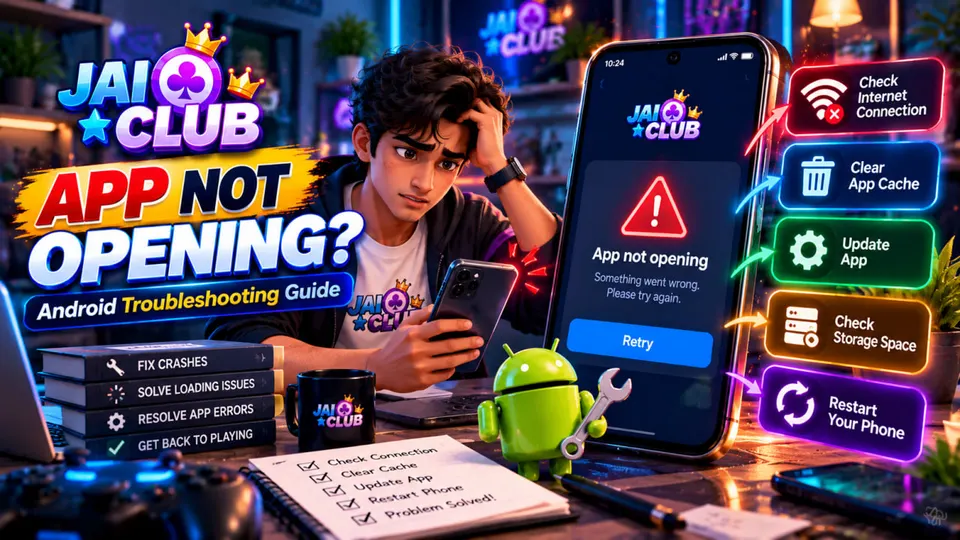
In this article
- Why Is the Jai Club App Not Opening?
- 1. Restart Your Android Phone
- 2. Check Your Internet Connection
- 3. Force Stop the Jai Club App
- 4. Clear the App Cache
- Should You Clear App Data?
- 5. Check Your Phone's Available Storage
- 6. Check Android Compatibility
- 7. Update the Application Safely
- 8. Check Android System WebView and Chrome
- 9. Check Date and Time Settings
- 10. Check VPN, Private DNS and Network Settings
- 11. What If the Jai Club App Keeps Crashing?
- 12. Jai Club App Not Responding or Stuck on Loading
- If the App Is Not Responding
- If the App Is Stuck on Loading
- If the App Shows a Blank Screen
- 13. How to Recognise a Suspicious Jai Club APK
- 14. What If Reinstalling the App Does Not Help?
- 15. When Should You Contact Support?
- Quick Troubleshooting Checklist
- Frequently Asked Questions
- Why is the Jai Club app not opening on Android?
- How do I fix Jai Club app crashing?
- What should I do if the Jai Club app is not responding?
- Can clearing the cache fix an Android app error?
- Why is the Jai Club app showing a blank screen?
- Is it safe to install a Jai Club APK from Telegram?
- Should I reinstall the app if it does not open?
- Is jaiclub-game.com the official Jai Club website?
- Final Thoughts
The Jai Club app not opening on your Android phone can be frustrating, especially when the application freezes, closes unexpectedly, or remains stuck on its loading screen.
In many cases, these problems are related to internet connectivity, outdated app files, insufficient storage, Android compatibility, or temporary service issues.
If your Jai Club app is crashing or not responding, start with simple checks before reinstalling anything. This guide explains common causes, practical Android troubleshooting steps, and important precautions for keeping your device and personal information safe.
Quick answer: If the Jai Club app is not opening, restart your phone, check your internet connection, update Android, clear the app cache, and confirm that the application comes from a trustworthy source. If the problem continues, the service itself may be unavailable.
Why Is the Jai Club App Not Opening?
There is no single cause of every Android app failure. The problem may occur on your device, within the application, or on the service's servers.
Common possibilities include:
- An unstable Wi-Fi or mobile data connection.
- Temporary app or Android system errors.
- Corrupted or outdated cached files.
- Insufficient storage space.
- An outdated or incompatible application version.
- Restrictions caused by Android battery or background settings.
- A temporary server outage.
- An application package obtained from an unverified source.
The symptoms can help narrow down the cause, but they do not always identify it conclusively.
1. Restart Your Android Phone
Restarting your device is one of the simplest troubleshooting steps.
A restart closes temporary processes, refreshes system resources, and may resolve a short-lived application problem.
To restart most Android phones:
- Press and hold the power button or use the device's power menu.
- Select Restart.
- Wait until the phone finishes starting.
- Open the app again.
The exact power menu may differ between Samsung, Xiaomi, Vivo, Oppo, Realme, and other Android devices.
If the application still fails to open, continue with the next step.
2. Check Your Internet Connection
Some applications require a working internet connection to load account information and online content.
If the Jai Club app opens but stays on a loading screen, your connection may be part of the problem.
Try the following:
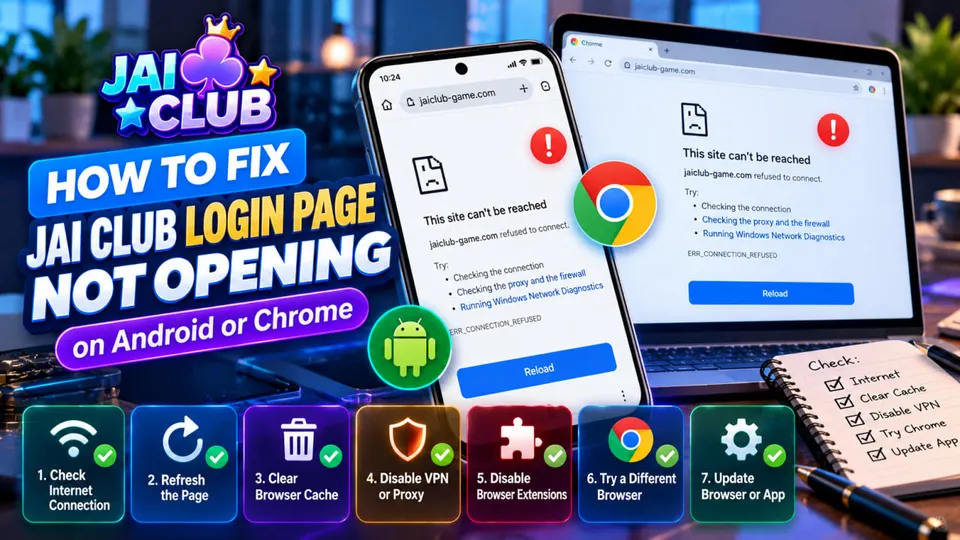
- Open a familiar, trusted website in Chrome.
- Check whether other internet-based apps are working.
- Switch between Wi-Fi and mobile data.
- Temporarily enable and disable airplane mode.
- Restart your router if the Wi-Fi connection is unstable.
Do not assume that the app's servers are down simply because one network fails.
If the application works on one connection but not another, the issue may involve your network settings, DNS resolution, or connectivity restrictions.
3. Force Stop the Jai Club App
If the app freezes or becomes unresponsive, forcing it to stop may help.
On many Android devices:
- Open Settings.
- Select Apps or App Management.
- Find the installed application.
- Tap Force stop.
- Wait a few seconds.
- Try opening the application again.
Force stopping an app ends its currently running process. It does not normally remove saved account information.
Menu names may differ depending on your Android version and phone manufacturer.
4. Clear the App Cache
Temporary files help apps load information more quickly. However, damaged or outdated cache files can sometimes cause unexpected behaviour.
To clear an app's cache:
- Open Settings on your Android phone.
- Go to Apps.
- Select the relevant application.
- Open Storage or Storage & cache.
- Tap Clear cache.
- Restart the application.
Clearing the cache usually removes temporary files rather than your account itself.
Should You Clear App Data?
Clear data or Clear storage is different from clearing the cache.
It may remove locally stored preferences, sessions, and other app information. You may need to sign in again afterward.
Before clearing app data, make sure you understand what will be deleted and that you have a verified way to recover access to any legitimate account.
Do not clear storage as your first troubleshooting step.
5. Check Your Phone's Available Storage
Android apps may behave unpredictably when the device has very little free storage.
Low storage can interfere with updates, temporary files, and normal application operations.
To check storage:
- Open Settings.
- Find Storage or Device care.
- Review the available space.
- Remove unnecessary files or unused applications if needed.
- Restart your phone and test the app.
The amount of free storage required varies by application and device.
Avoid installing unnecessary cleaner apps that request excessive permissions.
6. Check Android Compatibility
Not every application works on every Android version or device.
Compatibility problems may appear after a phone update or when an older app is used on a newer operating system.
Check these details:
- Your Android version.
- Whether your phone has pending system updates.
- Whether the app version supports your device.
- Whether the application was designed for your device's processor and system architecture.
You can usually find your Android version under Settings > About phone > Android version.
Do not install an unknown modified APK merely to bypass a compatibility warning.
7. Update the Application Safely
Outdated application files can sometimes lead to crashes, freezing, or loading problems.
However, updating is only advisable when you can verify the source and publisher.
If an application has a legitimate, trusted distribution channel, check that channel for available updates.
Before installing an update:
- Verify the app publisher.
- Review the source of the download.
- Check the requested permissions.
- Avoid links from unfamiliar Telegram groups or private messages.
- Do not install modified APK files promising special features.
An update should not require you to disclose your password or OTP to an unknown person.
8. Check Android System WebView and Chrome
Some Android applications use embedded web content.
On supported devices, Android System WebView and Chrome can affect how certain web-based screens display.
If an app opens to a blank page or fails while loading web content:
- Open the Google Play Store.
- Check for available updates to Android System WebView.
- Check for an available Chrome update.
- Install legitimate updates when offered.
- Restart the phone.
This step is relevant mainly to applications that depend on Android's web-rendering components. It is not a guaranteed fix for every app crash.
9. Check Date and Time Settings
Incorrect device time settings can interfere with some secure connections and authentication processes.
To check:
- Open Settings.
- Go to System, Additional settings, or Date & time.
- Enable automatic date and time if appropriate.
- Confirm that your time zone is correct.
- Try opening the application again.
For users in India, the usual time zone is India Standard Time (UTC+05:30).
Changing your device clock manually to bypass an application restriction is not recommended.
10. Check VPN, Private DNS and Network Settings
VPN services, private DNS configurations, and network filters can sometimes affect connectivity.
If you are using a VPN or custom DNS service, check whether it is causing an ordinary network problem.
You can compare connectivity using a trusted network without attempting to bypass regional or legal restrictions.
Important: If a service is blocked or restricted by applicable law or network policy, do not use technical workarounds to evade those restrictions.
11. What If the Jai Club App Keeps Crashing?
The phrase Jai Club app crashing usually describes an application that closes unexpectedly.
Try this sequence:
- Restart the device.
- Check available storage.
- Force stop the app.
- Clear its cache.
- Check for legitimate application updates.
- Update Android when appropriate.
- Check whether other apps are also crashing.
If several unrelated apps crash, the issue may involve the phone's operating system, storage, or hardware rather than a single application.
If only one app crashes repeatedly, the problem may be specific to that app.
12. Jai Club App Not Responding or Stuck on Loading
The message Jai Club app not responding may appear when an app stops responding to Android for an extended period.
A frozen loading screen is a related but different symptom.
If the App Is Not Responding
Try force stopping the application and restarting the phone.
Avoid repeatedly tapping the screen while the application is frozen.
If the App Is Stuck on Loading
Check your connection and test whether other trusted websites load normally.
A loading problem can also occur when a service is temporarily unavailable.
If the App Shows a Blank Screen
Check whether Android System WebView or Chrome needs an update, particularly if the application uses embedded web pages.
Do not assume that a blank screen means your account has been deleted.
13. How to Recognise a Suspicious Jai Club APK
People searching for a Jai Club Android app error may encounter websites offering replacement APK files.
Be careful when a download page:
- Claims to provide a secret or hacked version.
- Promises guaranteed game outcomes.
- Requests unusual Android permissions.
- Requires an advance payment to unlock the app.
- Asks you to share an OTP or account password.
- Uses an unfamiliar website address or publisher name.
- Encourages you to disable important security protections.
An APK file can contain malicious software even when its icon and name appear familiar.
If you cannot verify the publisher and source, avoid installing it.
14. What If Reinstalling the App Does Not Help?
Reinstallation should generally be considered only after simpler troubleshooting steps have failed.
Before uninstalling:
- Confirm that the app comes from a trustworthy source.
- Understand whether local data will be removed.
- Make sure any necessary account recovery information is available.
- Avoid installing a different APK simply because it uses a similar name.
If a legitimate application still fails after reinstallation, the problem may require a fix from its developer or service operator.
Repeatedly reinstalling an unverified app is unlikely to solve a server-side problem.
15. When Should You Contact Support?
Some problems cannot be fixed through Android settings.
Examples include account-specific errors, service outages, or application defects.
If verified support is available, provide useful technical details such as:
- Your phone model.
- Your Android version.
- The app version, if known.
- The exact error message.
- When the problem started.
- Which troubleshooting steps you already tried.
Do not send passwords, OTPs, recovery codes, or sensitive payment details.
This website does not operate Jai Club accounts and cannot investigate individual account restrictions.
Quick Troubleshooting Checklist
| Problem | What to Check First |
|---|---|
| App closes immediately | Restart phone, clear cache, check updates |
| App stuck on loading | Internet connection and service availability |
| App not responding | Force stop and restart |
| Blank screen | WebView, Chrome and app compatibility |
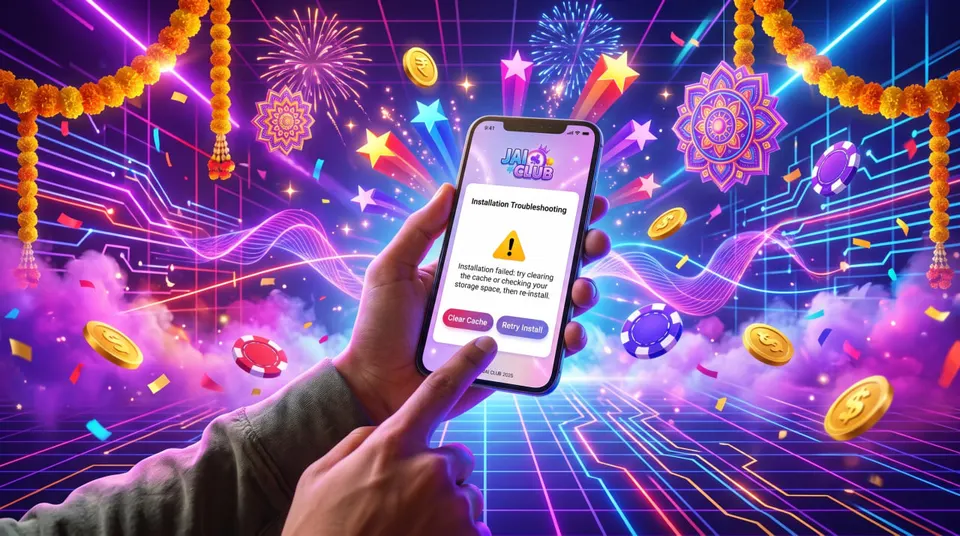
| Installation fails | Storage, Android version and source authenticity |
| App works on Wi-Fi but not mobile data | Network and DNS settings |
| App asks for unusual permissions | Verify publisher and app safety |
| Account-related error | Verified platform support |
These steps are general Android troubleshooting guidance. They are not confirmed fixes for a specific Jai Club application build.
Frequently Asked Questions
Why is the Jai Club app not opening on Android?
Possible causes include temporary system errors, connection problems, damaged cache files, low storage, compatibility issues, or service-side outages.
How do I fix Jai Club app crashing?
Start by restarting your phone, force stopping the app, clearing its cache, checking storage, and installing verified updates when available.
What should I do if the Jai Club app is not responding?
Wait briefly, then force stop the app if necessary. Restart your phone and check whether the problem continues.
Can clearing the cache fix an Android app error?
It can sometimes help when temporary files are causing problems. However, it will not resolve every application or server issue.
Why is the Jai Club app showing a blank screen?
A blank screen may result from connectivity problems, an application defect, or web-rendering issues. Updating Chrome or Android System WebView may help in some cases.
Is it safe to install a Jai Club APK from Telegram?
An APK shared through Telegram should not be assumed safe. Verify the publisher and source independently before installing anything.
Should I reinstall the app if it does not open?
Only consider reinstalling after simpler troubleshooting steps and after verifying that a legitimate installation source is available.
Is jaiclub-game.com the official Jai Club website?
No. jaiclub-game.com is an independent information website and does not provide official Jai Club account support.
Final Thoughts
If the Jai Club app is not opening, start with the simplest Android checks: restart your phone, verify your connection, force stop the app, clear its cache, and check for compatibility or update problems.
If the application continues crashing or not responding, avoid suspicious APK downloads and use verified technical support channels when available.
Disclaimer: This article provides general Android troubleshooting and online safety information. It is not affiliated with or endorsed by the Jai Club operator. It does not provide game access, betting services, or guaranteed solutions to account-specific problems.