WinGo Countdown Timer Not Working? Why Rounds Freeze or Reset
Is your Jai Club WinGo countdown frozen, restarting, or showing the wrong time? Understand how round timers work, why countdowns may stop updating, and how to troubleshoot common browser, network, and result-display problems.
In this article
- What Is a WinGo Countdown Timer?
- Why Does the Timer Matter?
- How Does a WinGo Round Countdown Work?
- Round Identifier
- Countdown Timer
- Result Display
- Results History
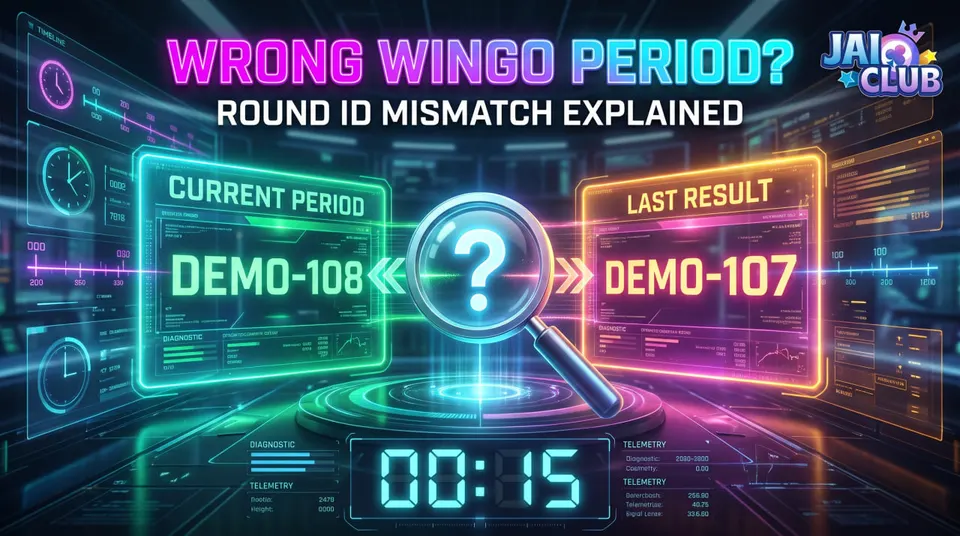
- WinGo Timer vs Period Number vs Result Time
- Why Is the WinGo Countdown Timer Not Working?
- Cause 1: Slow or Unstable Internet Connection
- Common Signs
- What to Check
- Cause 2: Browser Tab Was Paused in the Background
- Why Does This Happen?
- How to Investigate
- Cause 3: The Web Page Has Not Refreshed Correctly
- What Should You Do?
- Why Note the Period Number First?
- Cause 4: Device Clock or Time Synchronization Issues
- Check Your Device Time
- Cause 5: Browser Cache or Script Problems
- Possible Symptoms
- What to Try
- Cause 6: Temporary Website or Service Delay
- How to Recognize a Possible Service Problem
- What Should You Avoid?
- Cause 7: Your Browser Extension Is Interfering
- How to Test
- WinGo Countdown Stuck at Zero: What Does It Mean?
- Does Zero Mean the Result Is Ready?
- Does Zero Mean the Next Round Has Started?
- Why Might Zero Stay on Screen?
- WinGo Countdown Finished but No Result Is Showing
- Step 1: Record the Period ID
- Step 2: Check the Round Status
- Step 3: Review Results History
- Step 4: Compare the Exact Record
- Step 5: Avoid Drawing Conclusions From Missing Information
- WinGo Countdown Keeps Resetting: Is It Normal?
- Normal-Looking Round Transition
- Possible Display Problem
- What to Compare
- WinGo Period Not Changing After Countdown
- How to Investigate
- WinGo Timer Not Loading on Android
- When Using Chrome
- When Using an Application
- What About Battery Saver Mode?
- Can a WinGo Countdown Predict the Next Result?
- Common Misunderstanding: A Delay Signals a Specific Colour
- Common Misunderstanding: Timer Resets Reveal a Pattern
- Common Misunderstanding: The Period Number Contains the Result
- How to Check a WinGo Timer Problem Step by Step
- Step 1: Identify the Exact Symptom
- Step 2: Record the Period Number
- Step 3: Check Your Internet Connection
- Step 4: Return to the Browser Tab
- Step 5: Reload the Verified Page
- Step 6: Compare Another Browser
- Step 7: Examine Browser Settings
- Step 8: Check Device Time
- Step 9: Review the Result History
- Step 10: Stop Guessing if Information Is Missing
- Difference Between a Frozen Timer and a Delayed Result
- Mistakes to Avoid When the WinGo Timer Stops
- Refreshing Without Checking the Period
- Assuming Every Timer Error Is a Server Problem
- Trusting Unverified Prediction Claims
- Installing Unknown APK Files
- Sharing Account Information With Unofficial Helpers
- Confusing Past Results With Future Outcomes
- Frequently Asked Questions
- 1. Why is my WinGo countdown timer not working?
- 2. Why does the Jai Club WinGo timer freeze?
- 3. What does WinGo countdown stuck at zero mean?
- 4. Why is the WinGo result not showing after the countdown?
- 5. Does the WinGo countdown reset automatically?
- 6. Why is the WinGo period number not changing?
- 7. Can Chrome cause a WinGo timer problem?
- 8. Can a slow internet connection freeze the timer?
- 9. Does a frozen countdown change the game result?
- 10. Can WinGo timer delays predict the next colour?
- 11. Should I clear browser cache if the timer stops?
- 12. What should I do if the timer problem happens repeatedly?
- Final Thoughts
A WinGo countdown timer is one of the most noticeable elements on a round-based game interface. It helps users understand the time remaining before a particular stage ends or the interface moves to another round.
But what happens when the timer suddenly stops moving?
Some users may encounter a WinGo countdown stuck at zero, a round timer that appears frozen, or a results screen that does not update after the countdown finishes.
These situations can be confusing because the number on the timer, the period ID, and the published result do not always change at exactly the same moment on your screen.
This guide explains how a WinGo countdown timer generally works, why a game clock may stop updating, and how to distinguish browser problems from possible service-side delays.
The focus is on understanding the interface and troubleshooting technical problems, not predicting the next game result.
For broader background, start with our Jai Club WinGo explanation of colours, numbers, and game rounds.
What Is a WinGo Countdown Timer?
A WinGo countdown timer is a display element associated with the timing of a game round.
Depending on the platform, it may show the time remaining before a round closes, an outcome is processed, or the interface moves into another stage.
A countdown typically decreases as time passes.
For example, a generic round timer might display:
00:30
00:29
00:28
The numbers are illustrations of a countdown, not confirmation of any particular Jai Club round duration.
The actual countdown length and the events associated with it depend on the rules of the specific game.
Why Does the Timer Matter?
The timer helps distinguish the current stage of a round from other stages.
Without timing information, users may find it difficult to tell whether a displayed round is still active or has already ended.
However, a countdown is not the same thing as a verified result.
A timer reaching zero should not automatically be interpreted as proof that a particular colour or number has appeared.
How Does a WinGo Round Countdown Work?
Many round-based interfaces separate timing, round identification, and result publication.
These elements may be visually close together, but they have different functions.
Round Identifier
A period number or round ID identifies an individual round.
It helps distinguish one record from another.
Countdown Timer
The countdown displays the time remaining in a particular stage, according to the interface.
Result Display
The result section shows the outcome recorded for a completed round, where such information is provided.
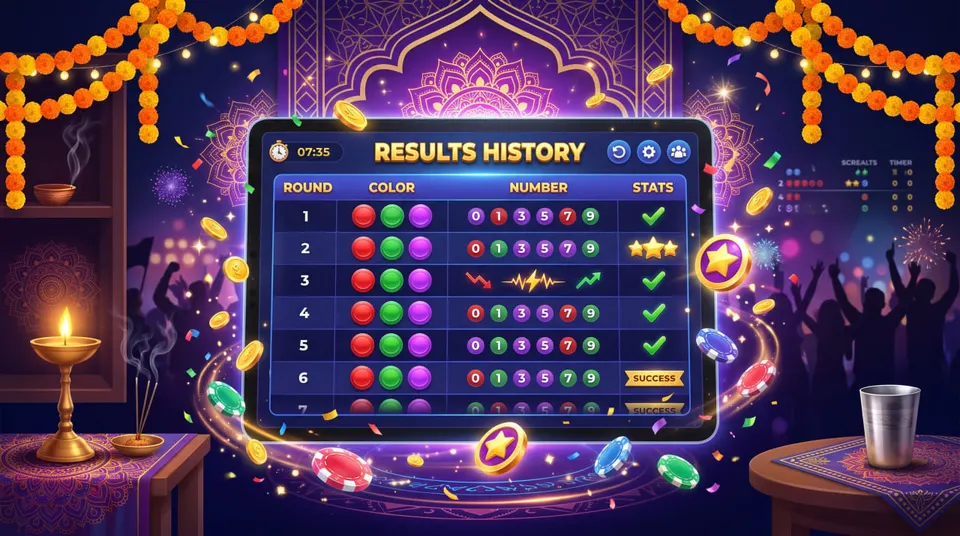
Results History
A history section contains previously displayed outcomes and their associated round information.
To understand round identifiers in more detail, read our WinGo period number guide.
WinGo Timer vs Period Number vs Result Time
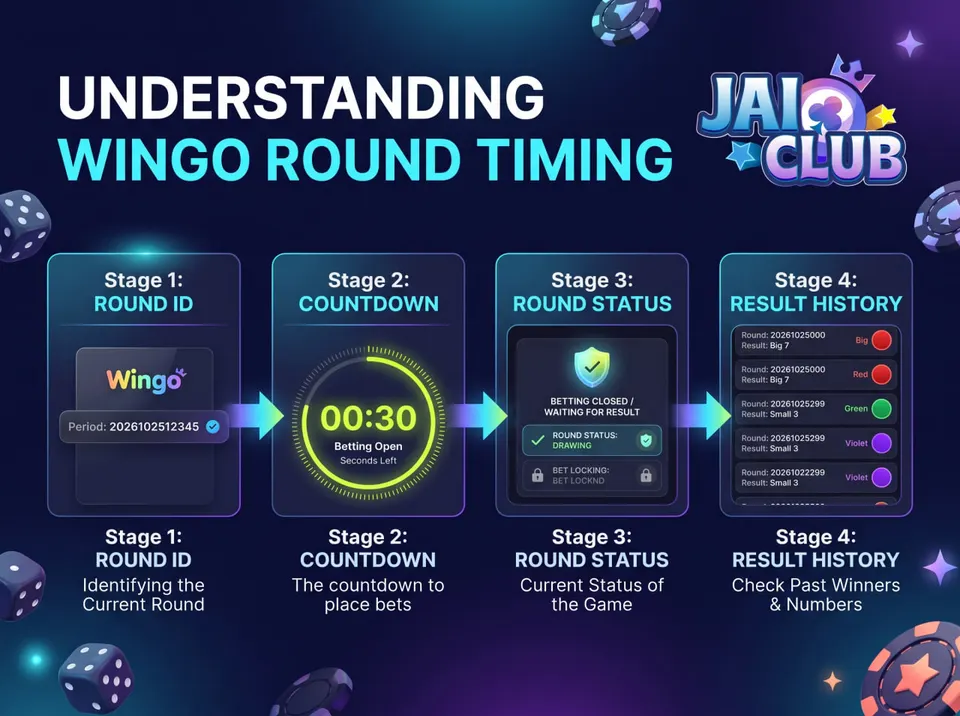
Three different pieces of information are often confused.
| Interface Element | What It Represents |
|---|---|
| Countdown timer | Time remaining in a displayed stage |
| Period number | Identifier for a specific round |
| Result timestamp | A displayed time associated with a result or event |
| Results history | Previously recorded round outcomes |
These elements are related but not interchangeable.
A countdown can reach zero before a result appears on your device.
A period ID can change while the previous result is still being loaded.
A timestamp may represent publication time rather than the start of the round.
The precise relationship must be determined using the verified rules and interface of the particular platform.
Why Is the WinGo Countdown Timer Not Working?
A countdown that appears frozen can have several explanations.
Not every frozen timer indicates a problem with the game server.
Sometimes the website itself is still functioning, but your browser has stopped updating a particular part of the screen.
Other times, the page may be displaying information that has not yet been refreshed.
Understanding the difference is important.
Below are common technical possibilities.
Cause 1: Slow or Unstable Internet Connection
A weak internet connection is one of the simplest explanations for delayed website updates.
Some interfaces receive new information from a remote server while the page is open.
If the connection becomes unstable, the page may fail to receive an update or may continue displaying an older state.
Common Signs
- The countdown stops changing.
- The page takes longer than usual to load.
- The displayed period does not change.
- Other page elements stop responding.
- The browser shows a connection error.
What to Check
Open another familiar website.
If that website also struggles to load, your connection may be unstable.
Try reconnecting to your network.
You can also compare a trusted Wi-Fi connection with mobile data.
Do not assume a frozen countdown proves that the next result has been delayed.
The screen may simply be outdated.
Cause 2: Browser Tab Was Paused in the Background
Modern browsers manage background tabs to conserve memory, battery power, and processing resources.
A background tab may receive fewer opportunities to run certain scripts.
This can affect interfaces that use browser-based timers.
Why Does This Happen?
When you switch to another application or leave a tab in the background, the browser may reduce background activity.
A countdown driven partly by local scripts might appear to stop or update less frequently.
The exact behavior depends on how the website implements its timer.
How to Investigate
Return to the browser tab.
Check whether the countdown resumes or corrects itself.
Compare the displayed period with the current information presented by the service.
If the timer repeatedly freezes only when the browser is in the background, tab management may be a contributing factor.
Cause 3: The Web Page Has Not Refreshed Correctly
A page can remain open while some of its displayed data becomes outdated.
The browser may still show a countdown or period ID that was loaded earlier.
In some cases, a simple refresh can retrieve newer information.
What Should You Do?
First note the currently displayed period ID.
Then refresh the verified page.
After reloading, compare the period number and displayed result information.
If they change, the earlier screen may have been stale.
Why Note the Period Number First?
Without the original period ID, it can be difficult to determine whether you are looking at the same round or a later one.
The timer alone does not identify a round.
Cause 4: Device Clock or Time Synchronization Issues
Some website timers depend partly on calculations performed in the browser.
Depending on the implementation, a device clock that is incorrect or inconsistent can contribute to confusing time displays.
Other implementations rely more heavily on server-provided timing.
Therefore, changing your phone clock is not a universal fix.
Check Your Device Time
Review whether your device uses automatic date and time settings.
Make sure the displayed time is accurate.
If the website provides a server time or clearly labelled timestamp, compare the information carefully.
Do not assume that the game uses Indian Standard Time merely because you are accessing it from India.
Cause 5: Browser Cache or Script Problems
Websites frequently use JavaScript to update interactive elements.
If an important script fails to load or encounters an error, a countdown may stop changing.
Browser cache inconsistencies can sometimes contribute to website display problems.
Possible Symptoms
- Timer displays but never changes.
- Other interactive elements fail.
- The page layout appears incomplete.
- Refreshing temporarily resolves the issue.
- One browser works while another fails.
What to Try
Use an updated browser.
Reload the affected page.
If the issue continues, test it in another supported browser on a trusted device.
Avoid clearing all browsing data immediately.
Clearing cookies and other site storage can sign you out of existing sessions.
Cause 6: Temporary Website or Service Delay
A timer problem can sometimes originate from the service rather than your device.
For example, the server responsible for delivering updated round information might be unavailable or responding slowly.
However, a user-facing frozen countdown is not enough evidence to confirm a service outage.
How to Recognize a Possible Service Problem
The issue may occur across multiple browsers.
The same period information may remain unchanged after reloading.
Other parts of the service may respond unusually slowly.
These observations are useful, but they do not independently establish the cause.
What Should You Avoid?
Do not repeatedly reload the page every second.
Do not interpret the delay as evidence of a particular upcoming result.
If verified service-status information is available, use it to check whether a technical incident has been reported.
Cause 7: Your Browser Extension Is Interfering
Some browser extensions alter website scripts, block network requests, or restrict storage access.
This can affect interactive page components.
Ad blockers, privacy extensions, and script-control tools can sometimes change how a website behaves.
How to Test
Check whether the problem occurs in another clean browser environment.
If the countdown works there, your original browser configuration may deserve further investigation.
Review extensions that were recently installed or updated.
Do not permanently disable important security protections simply to make an unfamiliar website function.
WinGo Countdown Stuck at Zero: What Does It Mean?
A countdown displaying 00:00 can have several possible meanings.
The displayed stage may have ended.
The interface may be waiting for a result or next period.
The page may not have received an update.
Or the timer display itself may be malfunctioning.
A zero value is not enough to distinguish between these possibilities.
Does Zero Mean the Result Is Ready?
Not necessarily.
A countdown and the publication of an outcome are separate interface events.
The game rules should explain what happens when a round closes and how results are presented.
If the result is not visible, avoid guessing based on the timer.
Does Zero Mean the Next Round Has Started?
Not necessarily.
A new round should be identified through the actual period or status information shown by the service.
A timer value alone is not a reliable round identifier.
Why Might Zero Stay on Screen?
Possible explanations include:
- Missing data refresh
- Browser script problems
- Network interruption
- A delay in displaying the next stage
- A service-side error
Only the service's actual information can establish which explanation applies.
WinGo Countdown Finished but No Result Is Showing
This is a related but slightly different problem.
In this case, the timer reaches its displayed endpoint, but the result section remains empty or unchanged.
Before assuming that a result is missing, identify the exact period involved.
Step 1: Record the Period ID
Look at the complete identifier associated with the round.
Do not rely only on the last few digits.
Step 2: Check the Round Status
Determine whether the interface marks the round as completed.
If there is no clear status, do not infer completion solely from the countdown.
Step 3: Review Results History
If the service provides a history section, search for the matching period.
Read our Jai Club WinGo results history guide for background on interpreting previous rounds.
Step 4: Compare the Exact Record
Check whether the result belongs to the period you recorded.
A result shown at the top of a history list may belong to a different round.
Step 5: Avoid Drawing Conclusions From Missing Information
A delayed or absent display does not reveal the next result.
If the information remains inconsistent, consult the verified service's rules or support information where available.
WinGo Countdown Keeps Resetting: Is It Normal?
Some interfaces restart their countdown when they move into a new round.
A reset can therefore be a normal transition.
However, a countdown that restarts repeatedly without any apparent period change may indicate another issue.
Normal-Looking Round Transition
The period identifier changes.
A new countdown begins.
The interface displays information associated with the new round.
This pattern may be consistent with the platform moving from one round to another.
Possible Display Problem
The timer jumps back to its initial value.
The period number stays unchanged.
The page briefly freezes or reloads.
This pattern may suggest a rendering or synchronization problem, but it does not establish a specific cause.
What to Compare
Focus on the period ID, result status, and page behavior together.
Avoid diagnosing the issue using the timer alone.
WinGo Period Not Changing After Countdown
A period number and timer should be interpreted according to the game interface.
If the countdown finishes but the period number remains unchanged, there are several possible explanations.
The interface may be waiting for a new state.
The page may be displaying stale information.
The website may have failed to receive the next update.
Or the game may use a transition stage not obvious from the countdown.
How to Investigate
Note the complete period number.
Check whether the page has stopped responding.
Refresh only after confirming that you are on a trusted destination.
Then compare the period number again.
If it remains unchanged, look for a status notice or explanation from the service.
Remember that a period identifier is an administrative reference.
It is not a code that predicts future colours or numbers.
WinGo Timer Not Loading on Android
Android users may encounter countdown display problems through a mobile browser or installed application.
The distinction matters because browser and application troubleshooting can differ.
When Using Chrome
Check whether the browser is updated.
Review whether the issue appears only in one tab or consistently across new page loads.
If the timer fails after switching applications, investigate browser background activity.
When Using an Application
Check whether the app was obtained from a verified source.
Review whether the device has sufficient available memory.
If the interface stops responding, close and reopen the app using its normal controls.
Do not install unknown modified APK files to fix a countdown problem.
What About Battery Saver Mode?
Battery-saving features can affect background activity.
However, they do not necessarily cause all timer problems.
Test whether the issue changes when the device remains active and the relevant page is visible.
Avoid unnecessarily weakening device protections.
Can a WinGo Countdown Predict the Next Result?
No reliable conclusion about a future colour or number follows from the countdown alone.
The timer describes time within a displayed process.
It does not provide evidence that a particular outcome will occur.
Similarly, a frozen countdown does not mean a future result has been revealed.
Common Misunderstanding: A Delay Signals a Specific Colour
A delay is a technical observation.
Without verified evidence about the game system, it cannot establish the next colour.
Common Misunderstanding: Timer Resets Reveal a Pattern
Timer resets may reflect normal round transitions or technical issues.
They are not, by themselves, predictive signals.
Common Misunderstanding: The Period Number Contains the Result
A round identifier distinguishes one period from another.
Its numerical appearance does not automatically encode the outcome.
For further background on colours and number terminology, explore our Jai Club Colour Trading guide.
How to Check a WinGo Timer Problem Step by Step
Use the following sequence when the displayed countdown behaves unexpectedly.
Step 1: Identify the Exact Symptom
Decide whether the timer is frozen, resetting, missing, or displaying zero.
These are different symptoms.
Step 2: Record the Period Number
Write down the full round identifier displayed on the screen.
This helps distinguish an outdated screen from a later round.
Step 3: Check Your Internet Connection
Open another familiar website to see whether the network works normally.
Step 4: Return to the Browser Tab
If the countdown stopped while the browser was in the background, bring the page back into focus.
Check whether the displayed time updates.
Step 5: Reload the Verified Page
Refresh the page once and compare its new state with what you recorded.
Step 6: Compare Another Browser
If the problem remains, try a different updated browser on a device you trust.
Step 7: Examine Browser Settings
Review extensions or privacy settings that might interfere with the website.
Step 8: Check Device Time
Make sure your phone or computer is using accurate date and time settings.
Step 9: Review the Result History
If a round supposedly ended, compare its exact period ID with the corresponding history entry.
Step 10: Stop Guessing if Information Is Missing
If the interface remains inconsistent, avoid making assumptions about timing or outcomes.
Use verified service information where available.
Difference Between a Frozen Timer and a Delayed Result
A frozen timer and a delayed result are not the same problem.
A frozen timer describes a display that is no longer counting down as expected.
A delayed result describes outcome information that has not appeared at the expected point.
It is possible for one to occur without the other.
| Problem | Main Symptom | Information to Check |
|---|---|---|
| Frozen timer | Seconds stop changing | Browser, network, scripts |
| Timer resets | Countdown returns to starting value | Period ID and round status |
| Delayed result | Result not visible after round stage | Matching history entry |
| Period not updating | Round ID remains unchanged | Fresh page data |
| Wrong displayed time | Timing looks inconsistent | Device time and platform labels |
| Blank timer | No countdown visible | Page loading and browser support |
Keeping these distinctions clear makes troubleshooting more efficient.
Mistakes to Avoid When the WinGo Timer Stops
Refreshing Without Checking the Period
A page refresh can replace the information you were trying to investigate.
Record the relevant round ID first.
Assuming Every Timer Error Is a Server Problem
The issue could originate from the browser, network, or device.
Trusting Unverified Prediction Claims
A technical delay does not establish that anyone can see or manipulate a future result.
Installing Unknown APK Files
Modified applications can introduce security risks and should not be treated as reliable troubleshooting tools.
Sharing Account Information With Unofficial Helpers
Do not provide passwords or verification codes to someone claiming they can fix a countdown remotely.
Confusing Past Results With Future Outcomes
Historical records are useful for understanding what has already happened.
They do not guarantee what will happen next.
Frequently Asked Questions
1. Why is my WinGo countdown timer not working?
Possible causes include browser scripts failing, network interruptions, stale page data, background tab restrictions, or temporary service issues. The exact cause depends on the behavior shown.
2. Why does the Jai Club WinGo timer freeze?
A timer may appear frozen if the browser stops updating the display or the page cannot retrieve current information. A frozen display does not necessarily mean the game round itself has stopped.
3. What does WinGo countdown stuck at zero mean?
It may indicate that a displayed stage has ended, the next stage has not appeared, or the interface is not updating. Check the period identifier and result status before drawing conclusions.
4. Why is the WinGo result not showing after the countdown?
The result display may not have refreshed, the service may be delayed, or the result may be associated with a different period. Compare the exact round ID with the available result history.
5. Does the WinGo countdown reset automatically?
A countdown may restart when an interface transitions into a new round. Whether that behavior is normal depends on the verified rules and implementation of the particular game.
6. Why is the WinGo period number not changing?
Possible explanations include stale browser data, a delay in loading the next round, or a transition stage. The complete period ID should be checked alongside the displayed status.
7. Can Chrome cause a WinGo timer problem?
Browser behavior can contribute to some timer issues, including background tab limitations, script errors, or storage-related problems. This does not mean Chrome is always the cause.
8. Can a slow internet connection freeze the timer?
It can affect delivery of website updates. However, the result depends on whether the countdown is controlled locally, remotely, or through a combination of both.
9. Does a frozen countdown change the game result?
A frozen display alone does not establish that the recorded outcome has changed. Check the service's verified round and result information.
10. Can WinGo timer delays predict the next colour?
No dependable prediction can be made from a delay alone. Claims that technical errors reveal guaranteed outcomes should be treated with skepticism.
11. Should I clear browser cache if the timer stops?
Try less disruptive troubleshooting first. Clearing all site data can remove saved sessions, so make sure you have the necessary account information before doing so.
12. What should I do if the timer problem happens repeatedly?
Record the exact symptom, period number, browser, and time of the issue. Compare behavior on another trusted browser or network and consult the verified service's support information if available.
Final Thoughts
A WinGo countdown timer can become confusing when the numbers freeze, reset unexpectedly, or reach zero before a result appears.
The most important thing is to distinguish a timer display problem from a round-status or result-history problem.
Start by checking the full period ID, internet connection, browser behavior, and available history information.
Avoid assuming that every countdown problem indicates a server outage or reveals anything about the next result.
For additional explanations, explore the WinGo guide category, where related articles explain game rounds, period identifiers, and result history.
Understanding these different interface elements makes WinGo troubleshooting clearer and helps prevent misunderstandings about round timing and displayed outcomes.