Android Notifications Not Showing? App Permission Checks
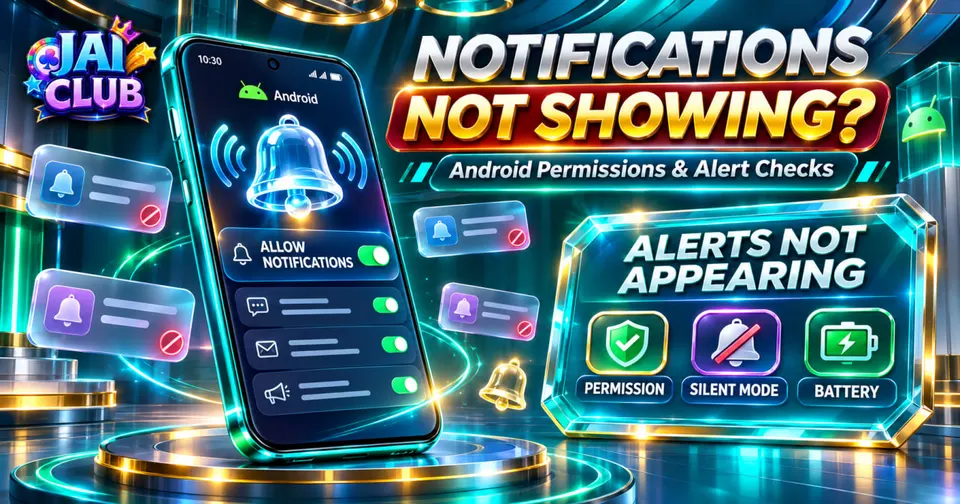
Understand why Android app notifications may not appear. Check notification permissions, Android 13 requirements, app categories, Do Not Disturb, battery restrictions and browser notifications.
In this article
- Why Are Android Notifications Not Showing?
- Android Notification Problems: Quick Comparison
- Step 1: Confirm the App Supports Notifications
- Step 2: Check Notification Permission
- Android 13 Notification Permission Kaise Work Karta Hai?
- Android 12 vs Android 13 Notifications
- Step 3: Review Notification Categories
- Step 4: Check Silent Notifications
- Step 5: Review Do Not Disturb
- Step 6: Check Lock-Screen Privacy
- Step 7: Understand Battery Restrictions
- Step 8: Check Internet Connectivity
- Step 9: Restart and Update the Application
- Step 10: Check Notification History
- App Notifications vs Browser Notifications
- What About Chrome Website Notifications?
- Notifications Not Showing After an App Update
- Why a Missing Notification Does Not Prove a Missing Result
- Notifications vs In-App Messages
- Example: Permission Denied on Android 13
- Example: Permission Enabled but No Alert Appears
- When to Contact Verified Support
- Frequently Asked Questions
- Why are Android app notifications not showing?
- Does Android 13 require notification permission?
- Will enabling notifications guarantee every alert?
- Can Do Not Disturb hide notifications?
- Why do some notification categories work while others do not?
- Can battery settings delay notifications?
- Are browser notifications the same as app notifications?
- Does a missing notification mean the account event failed?
- Can notification history show dismissed alerts?
- Does every Jai Club-related app provide push notifications?
- Conclusion
- Sources and Methodology
Android app notifications may stop appearing when permission is denied, a notification category is disabled, the device is in a restrictive notification mode or the application is unable to generate or receive the expected alert. However, a missing notification does not always mean that Android is malfunctioning.
The first question is whether the application actually supports the notification being expected. An app can open normally and connect to its service without providing push alerts for every account or game event.
This troubleshooting guide explains Android notification permissions, notification categories, Do Not Disturb, battery-related delays and the difference between app and browser notifications. It is useful for people researching Jai Club app notifications, but does not claim that every Jai Club-related APK provides the same alert features.
Why Are Android Notifications Not Showing?
Android notifications depend on several conditions working together.
The application must support the relevant alert, the operating system must allow it, and the notification must be generated and delivered through the application's intended process.
A problem at any of these stages can prevent a visible alert.
For example, a user might enable notifications in Android settings, but the application may not provide a notification for the particular event being checked.
In that situation, the permission is not necessarily the cause. The expected functionality may simply be unavailable.
Android Notification Problems: Quick Comparison
Different symptoms can point to different causes.
| Symptom | Possible cause | Useful check |
|---|---|---|
| No app alerts at all | Permission denied or unsupported feature | App notification settings |
| Only some alerts missing | Category disabled | Notification channels |
| Alerts silent | Sound or silent notification settings | Sound and vibration |
| Alerts delayed | Background processing or connectivity | Battery and network |
| No lock-screen alerts | Privacy or lock-screen settings | Lock-screen notifications |
| Browser alerts missing | Site permission or browser settings | Browser notification controls |
| Alerts visible only in history | Presentation settings | Notification history |
This table is intended for diagnosis. It does not establish that one symptom always has one technical cause.
Step 1: Confirm the App Supports Notifications
Before changing settings, determine whether the application has documented support for the expected notification.
For example, an account service may support security alerts but not publish a push notification for every completed game round.
Another service may use only in-app messages or a transaction-history panel.
Android cannot display a push notification that the application never generates.
This distinction matters when reviewing Jai Club-related software because similarly named services may have different features and publishers.
Step 2: Check Notification Permission
Android provides controls for allowing or blocking notifications from individual applications.
On many phones, these settings can be found by opening Settings, selecting Apps, choosing the relevant application and opening Notifications.
The exact menu names depend on the Android version and manufacturer.
If notifications are disabled, the app may be unable to display ordinary notifications until permission is granted.
However, enabling permission does not guarantee delivery. The application still needs to support the feature and generate the relevant alert.
Android 13 Notification Permission Kaise Work Karta Hai?
Android 13 introduced a runtime permission named POST_NOTIFICATIONS for most non-exempt notifications.
When a newly installed application requests this permission, the user may be asked whether to allow notifications.
If permission is denied, the application generally cannot display ordinary non-exempt notifications in the notification drawer.
Android includes specific exceptions, so the rules are not identical for every system-related notification type.
The important point is that a newly installed app on Android 13 or later may require an explicit permission decision.
Android 12 vs Android 13 Notifications
The notification-permission model changed with Android 13.
On older Android versions, notification management mainly relied on application and channel settings rather than the same general runtime permission.
On Android 13 and later, the runtime permission adds another important control.
| Feature | Android 12 and earlier | Android 13 and later |
|---|---|---|
| General runtime permission | Different model | POST_NOTIFICATIONS |
| App notification controls | Available | Available |
| Notification channels | Supported on applicable versions | Supported |
| User can block alerts | Yes | Yes |
| App must support alert feature | Yes | Yes |
This comparison describes broad Android behaviour.
Device manufacturers may present the settings through different menu layouts.
Step 3: Review Notification Categories
Android applications can organise notifications into categories known as notification channels.
A messaging application, for example, may use different channels for conversations, background activity or other alert types.
If one channel is disabled, other categories may still work.
This can explain why a user receives some notifications but not others.
However, only categories actually created by the application will appear. A user should not expect to see categories that the developer has not implemented.
The Android Developers documentation explains that channels allow users to manage different notification types through system settings.
Step 4: Check Silent Notifications
A notification can exist without producing an audible alert.
Some Android notifications are configured to appear silently, while others may use sound or vibration depending on system and application settings.
A user who expects a sound may therefore believe no notification arrived even when an entry is visible in the notification panel.
The distinction is between notification delivery and notification presentation.
Reviewing the notification category, sound settings and device volume can help identify whether the alert was received silently.
Step 5: Review Do Not Disturb
Do Not Disturb can limit notification interruptions according to the device's settings.
An alert may still exist while sound, vibration or visual interruption is reduced.
The exact behaviour depends on the configured mode and permitted exceptions.
A user should therefore check whether Do Not Disturb or another focus mode is active before assuming the application's notification feature has stopped working.
However, Do Not Disturb does not explain every missing alert. The application may also fail to generate the notification.
Step 6: Check Lock-Screen Privacy
Android allows users to manage whether notifications appear on the lock screen and whether sensitive information is visible.
A notification may arrive normally but remain hidden from the lock screen because of privacy settings.
This can create confusion when the user only checks the phone without unlocking it.
For security-related account messages, hiding sensitive notification content may be an intentional privacy choice.
A lock-screen visibility setting should therefore not be changed without considering the information that could become visible to other people.
Step 7: Understand Battery Restrictions
Android uses background-execution and battery-management features to control resource consumption.
Depending on the application, device manufacturer and notification mechanism, restrictive background behaviour can affect how certain tasks are performed.
However, modern push delivery systems are designed to work with Android's power-management environment, so battery optimisation should not automatically be blamed for every delayed notification.
A useful check is whether the issue appears only after the app has been inactive for a long time.
Changing battery settings can increase power consumption and may not resolve the underlying issue.
Step 8: Check Internet Connectivity
Many push notifications require the device to receive information through a network service.
If connectivity is interrupted, some notifications may be delayed or unavailable until the device reconnects.
However, a working internet connection does not guarantee that an application will generate the expected alert.
Check whether unrelated online services load normally before concluding that the notification problem is caused by the network.
A comparison between Wi-Fi and mobile data can be useful when the same symptom repeatedly occurs under one connection type.
Step 9: Restart and Update the Application
Restarting a device can help resolve temporary software problems.
Checking for supported updates is also a reasonable troubleshooting step when a compatible application behaves unexpectedly.
Updates should come from the application's verified publisher or an authorised distribution source.
An unknown APK advertised as a notification fix is not necessarily safe.
The Android App Help section contains additional troubleshooting information about application loading, updates and installation safety.
Step 10: Check Notification History
Some Android devices provide a Notification History feature.
Where supported and enabled, it may show notifications that were recently dismissed or received.
This can help distinguish an alert that was delivered but not noticed from one that never appeared.
However, notification history is not universally available in the same form on every device.
It also may not contain notifications from before the feature was enabled.
The absence of an entry is therefore not conclusive proof that an application failed to send a message.
App Notifications vs Browser Notifications
An installed Android application and a website opened through a browser use different notification and permission arrangements.
An app may request operating-system notification permission.
A website may request site-specific notification permission through a browser, provided the browser and website support the feature.
The two systems should not be treated as interchangeable.
For example, allowing an Android app to send notifications does not automatically grant notification permission to a similarly named website opened in Chrome.
Our App vs Browser comparison explains these differences in access and permissions.
What About Chrome Website Notifications?
Chrome can support notifications from websites that implement the relevant web features.
However, a website must actually provide a notification system, and the user must grant the appropriate permission.
A site that never requests permission or does not support push notifications will not automatically send alerts simply because Chrome is installed.
Users should also be cautious when unfamiliar websites aggressively request permission to send promotional notifications.
Permission should be granted only when the website is trusted and the alerts are genuinely useful.
Notifications Not Showing After an App Update
An update may change how an application handles its permissions, notification categories or background functionality.
However, the timing of the update alone does not prove it caused the problem.
A useful diagnostic report should identify when the issue began, which version was installed and whether the app previously delivered the same alert type.
This information can help distinguish a software regression from a disabled permission or an unsupported feature.
Reinstalling the application should not be the first response, because uninstalling can remove locally stored data.
Why a Missing Notification Does Not Prove a Missing Result
An account event and an Android notification are different pieces of information.
A completed transaction may exist in a service's account history even if no push notification is displayed.
Similarly, a missing alert does not establish that a game result was changed.
A user checking a Jai Club-related result or account event should rely on the relevant authenticated record rather than treating the presence or absence of a notification as final proof.
This distinction is particularly important when the service does not clearly document which events generate push alerts.
Notifications vs In-App Messages
An in-app message appears through the application's own interface.
A push notification is delivered through an operating-system notification mechanism.
The two can contain similar information, but they are technically different.
An application may support one without supporting the other.
This is another reason to confirm the intended feature before changing Android permissions.
Example: Permission Denied on Android 13
Consider a fictional application that supports ordinary push notifications.
The app is installed on Android 13 and requests notification permission.
The user selects Don't allow.
Under the normal permission model, the application cannot display its ordinary non-exempt notifications until permission is granted.
This example illustrates Android behaviour, not a verified Jai Club notification flow.
Example: Permission Enabled but No Alert Appears
In another fictional case, the user has already enabled notification permission.
However, the application does not support the expected event-based alert.
The device settings are correct, but no notification appears because the feature is unavailable.
This example demonstrates why troubleshooting must begin with feature support rather than assuming every missing alert is a permission problem.
When to Contact Verified Support
A support request becomes more useful when the expected notification type is documented and the user has checked the relevant permissions and settings.
Include the device model, Android version, app version and type of alert that failed to appear.
Explain whether the problem affects all alerts or only one category.
Avoid sharing passwords, OTPs or other authentication secrets.
A technical support contact does not need a user's password merely to identify whether Android notification permission is enabled.
Frequently Asked Questions
Why are Android app notifications not showing?
Possible causes include denied permission, disabled categories, restricted presentation, connectivity issues or unsupported notification functionality.
Does Android 13 require notification permission?
Most non-exempt application notifications require POST_NOTIFICATIONS permission on Android 13 and later.
Will enabling notifications guarantee every alert?
No. The application must support and generate the relevant notification.
Can Do Not Disturb hide notifications?
It can reduce or suppress notification interruptions according to the configured settings.
Why do some notification categories work while others do not?
Android allows applications to use separate notification channels, which can have different settings.
Can battery settings delay notifications?
Some background behaviour can be affected by power-management settings, but the precise cause depends on the application and device.
Are browser notifications the same as app notifications?
No. They use different permission and delivery arrangements.
Does a missing notification mean the account event failed?
No. The underlying account record must be checked separately.
Can notification history show dismissed alerts?
On supported devices, notification history may help identify previously received notifications.
Does every Jai Club-related app provide push notifications?
That has not been verified. Feature availability depends on the actual application and publisher.
Conclusion
Android notification troubleshooting begins by identifying whether the application supports the expected alert.
After that, permission, categories, presentation settings, connectivity and device behaviour can be reviewed separately.
Android 13's runtime permission is an important factor, but it is not a universal explanation for every missing notification.
This guide is based on Android's documented notification system. No specific Jai Club APK or notification-delivery service was independently tested.
Sources and Methodology
Primary technical basis: Android Developers documentation for notification runtime permission and notification channels.
Troubleshooting examples are fictional and describe general Android behaviour.
The article does not claim that a particular operator provides notifications for every account or gaming event.