Android Game Screen Cropped: Display Size and Rotation Checks
Learn why an Android game screen may appear cropped, stretched or partly hidden. Explore display scaling, screen rotation, browser zoom, navigation bars, camera cutouts and safe troubleshooting.
In this article
- What Does Android Game Screen Cropped Mean?
- Common Android Screen Cropping Symptoms
- Step 1: Identify Where the Screen Is Cut Off
- Step 2: Check Android Display Size
- Does Smaller Display Size Fix Cropping?
- Step 3: Review Font Size Separately
- Step 4: Check Portrait and Landscape Orientation
- Step 5: Understand Aspect Ratio Problems
- Screen Cropping vs Letterboxing
- Step 6: Check Navigation Bar Overlap
- Step 7: Check the Camera Cutout and Status Bar
- Step 8: Check Chrome Page Zoom
- Browser Screen Cropped vs Installed App Cropped
- Step 9: Review Split-Screen Mode
- Step 10: Check for Supported Updates
- Step 11: Check Whether Only One Game Is Affected
- Example: Bottom Confirm Button Is Hidden
- Example: The Same Page Fits on One Phone but Not Another
- Should You Clear App Data?
- What Information Helps Technical Support?
- Frequently Asked Questions
- Why is my Android game screen cropped?
- Can display size affect game controls?
- Why is the bottom button hidden?
- Can a camera cutout hide game controls?
- Is letterboxing the same as cropping?
- Can Chrome zoom affect a mobile game page?
- Why does the game work in portrait but not landscape?
- Should I clear all app data?
- Does a cropped screen mean the game result is incorrect?
- Conclusion
- Sources and Editorial Method
An Android game screen may appear cropped when parts of its interface extend beyond the visible display area. Users may notice that the Confirm button is partly hidden, the navigation menu is cut off, or the game board does not fit properly after rotating the phone.
This is different from an application that does not open at all. In a screen-cropping problem, the game may be running normally, but certain buttons, text or visual elements are difficult to see or reach.
Several factors can contribute to this behaviour, including display scaling, screen orientation, browser zoom, full-screen settings and application layouts that do not adapt correctly to the device.
This troubleshooting guide explains how to identify those differences and review the relevant Android settings. It is useful for readers experiencing a cropped Jai Club game interface, although no specific Jai Club APK was independently tested for this article.
What Does Android Game Screen Cropped Mean?
A cropped game screen is a display problem in which part of the expected interface is not visible within the available screen area.
For example, an application designed around one screen shape may place a button too close to the bottom edge. On a different device, the button may overlap the system navigation area or appear partly outside the visible window.
Cropping can also affect the top of the screen, especially when an application uses a full-screen layout without correctly accounting for the status bar or camera cutout.
The important distinction is that cropping concerns the placement of visible content, not necessarily the operation of the game itself.
Common Android Screen Cropping Symptoms
The exact appearance depends on the device and application.
| Symptom | Possible explanation |
|---|---|
| Bottom button is hidden | Navigation bar or layout overlap |
| Top menu is cut off | Status bar or camera cutout |
| Screen looks unusually large | Display scaling or zoom |
| Game stretches horizontally | Aspect ratio handling |
| Landscape view clips controls | Orientation or responsive layout |
| Only browser version is affected | Page zoom or website layout |
| Black borders around game | Compatibility or letterboxing |
| Problem appears after update | Application or Android layout change |
These are possible causes, not confirmed diagnoses.
A screen that looks cropped on one device may have a different underlying issue from a similar-looking problem on another device.
Step 1: Identify Where the Screen Is Cut Off
Begin by checking which edge of the interface is affected.
If the bottom controls are hidden, the issue may involve the navigation area, screen scaling or a layout that extends too far down.
If the top controls are missing, the status bar or camera cutout may be relevant.
If both sides appear cropped in landscape mode, the application may not be adapting correctly to the screen's aspect ratio.
This initial observation is useful because changing unrelated settings can make troubleshooting more confusing.
Step 2: Check Android Display Size
Android provides a display-size setting that changes the apparent size of interface elements.
A larger display-size setting can make buttons, menus and other controls appear bigger. Applications that do not adapt correctly may struggle to fit everything into the available area.
Google's Android Accessibility documentation explains that display size can be adjusted through the device settings.
On many phones, the setting is available through Settings followed by Display size or Display size and text.
The exact menu name varies across Android versions and manufacturers.
Does Smaller Display Size Fix Cropping?
Changing display size may help identify whether scaling contributes to the problem.
However, it is not a guaranteed fix.
If the application uses a defective or non-responsive layout, changing the Android scaling setting may leave the underlying problem unresolved.
Users should also consider readability. An interface should not require extremely small text merely to make its controls visible.
The purpose of the check is to understand the relationship between the device setting and the application's layout.
Step 3: Review Font Size Separately
Font size and display size are related but different settings.
Font size mainly affects text presentation in applications that support the adjustment.
Display size affects the scale of a wider range of interface elements.
A large font may cause labels to wrap or occupy additional space, especially in an application with a narrow layout.
However, Google notes that font-size settings do not affect every application in the same way.
If only text is overlapping while buttons and images fit normally, font handling may be more relevant than general display scaling.
Step 4: Check Portrait and Landscape Orientation
Some games are designed primarily for portrait use, while others use landscape mode.
A responsive application should handle supported orientation changes properly.
If a game screen becomes cropped only after rotation, the layout may be using incorrect dimensions or may not fully support the new orientation.
A useful comparison is to observe the interface in its intended orientation, then check whether the problem appears after rotating the device.
Do not assume that forcing landscape mode through an unknown third-party tool is a reliable fix.
The application's supported orientation and the Android version should be considered together.
Step 5: Understand Aspect Ratio Problems
Aspect ratio describes the relationship between a display's width and height.
Two Android phones can have different screen shapes even when both are described as Full HD or have similar pixel counts.
An application designed around a fixed aspect ratio may need to scale or reposition its content when running on a different device.
If the application does not handle that adaptation correctly, some content may be stretched, letterboxed or clipped.
Android Developers documents compatibility behaviour for applications that use fixed orientation or fixed aspect-ratio restrictions.
This is a technical layout issue rather than evidence that the game has changed its completed results.
Screen Cropping vs Letterboxing
Cropping and letterboxing are different visual conditions.
Cropping means part of the content is not visible.
Letterboxing means the application occupies a smaller region of the screen, often leaving empty borders around the content.
| Display condition | What happens |
|---|---|
| Cropping | Content extends beyond visible area |
| Letterboxing | Empty borders preserve layout proportions |
| Stretching | Content changes shape to fill space |
| Scaling | Elements are displayed larger or smaller |
| Overlap | Interface elements cover one another |
These distinctions help identify whether the problem comes from content placement or Android's compatibility handling.
Removing black borders is not always desirable if the alternative would distort the layout.
Step 6: Check Navigation Bar Overlap
Modern Android applications can draw content behind system navigation areas.
This can create a visually smooth full-screen experience when the application handles the necessary spacing correctly.
However, important buttons should remain accessible.
Android Developers explains that applications need to account for system-bar insets so interactive elements are not obscured.
If the bottom Confirm button sits behind the gesture navigation area, the app's layout may not be applying sufficient safe spacing.
Users should not assume that repeatedly tapping the hidden area will activate the correct control.
Step 7: Check the Camera Cutout and Status Bar
Some Android phones have a notch, punch-hole camera or another display cutout.
Applications may need to keep important controls away from those physical screen regions.
Android's edge-to-edge design guidance discusses display cutout insets and safe positioning.
A problem that occurs only on a phone with a particular camera cutout may indicate a layout compatibility issue.
For example, a game title or close button positioned at the very top edge could become difficult to see if the app does not account for the available space.
This is different from a loading error because the content exists but is positioned incorrectly.
Step 8: Check Chrome Page Zoom
If the game is opened through Chrome rather than an installed application, page zoom is another relevant setting.
Chrome on Android supports zoom controls that can change the apparent size of webpage content.
Google's Chrome Help explains that page zoom can be managed through Settings and Accessibility, with additional site-specific controls where supported.
An unusually high zoom level may cause a poorly responsive interface to extend beyond the visible width.
However, zooming out should not be treated as a substitute for proper mobile website design.
A well-designed mobile website should remain usable across supported viewport sizes.
Browser Screen Cropped vs Installed App Cropped
A browser-based game and an installed Android application can handle screen layout differently.
A website may use responsive CSS, browser zoom and viewport settings.
An installed application may use native Android layouts or an embedded web-rendering component.
| Check | Browser version | Installed app |
|---|---|---|
| Page zoom | May apply | Usually not a browser control |
| App display scaling | Indirectly relevant | Can be relevant |
| Orientation | Browser and website behaviour | App orientation behaviour |
| System bars | Browser-managed space | App-specific layout handling |
| Updates | Browser and website updates | Verified app updates |
For a broader explanation of the difference, read our Jai Club App vs Browser guide.
The article explains why the two access methods should not automatically be expected to use identical layouts.
Step 9: Review Split-Screen Mode
Android supports displaying multiple applications within separate screen regions on compatible devices.
When an application runs in split-screen mode, its available window may be smaller than the full device display.
A game that does not adapt correctly could show clipped menus or overlapping elements.
A useful diagnostic comparison is to open the same application in its normal full-screen window.
If the issue occurs only in split-screen mode, resizing behaviour may be involved.
The actual application must support the relevant display configuration for the experience to work properly.
Step 10: Check for Supported Updates
An application update may include layout fixes or compatibility changes.
Android updates can also affect how applications handle screen dimensions, system bars and orientation.
Google's Android documentation describes changes to adaptive layout behaviour in newer Android versions, including Android 16.
However, the presence of a newer Android version does not prove that it caused a particular display issue.
Check the application's verified distribution source and use supported updates rather than installing unknown modified packages.
Our Android App Not Opening guide covers broader application troubleshooting and safe update practices.
Step 11: Check Whether Only One Game Is Affected
If an application's account menu fits correctly but a particular game board is cropped, the problem may be limited to the embedded game interface.
A game can load its own graphics and layout separately from the surrounding application.
This means the main navigation and the game content may not respond identically to the device's screen dimensions.
A useful report should identify whether the problem affects the entire application or only one selected game.
That difference can help the relevant developer investigate the correct component.
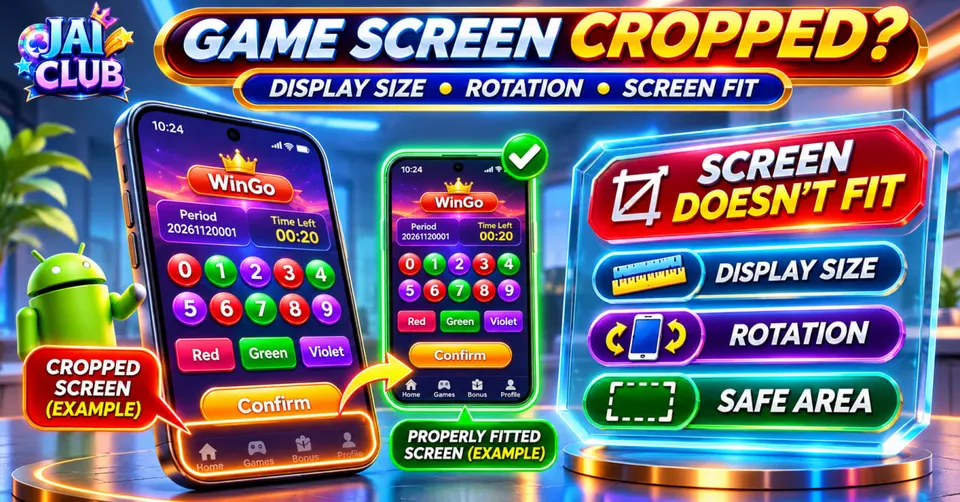
Example: Bottom Confirm Button Is Hidden
Imagine a fictional mobile game screen where a Confirm button is partly covered by the Android navigation area.
The rest of the page loads normally.
This suggests a possible overlap between interactive content and the system's visible area.
A useful diagnostic record would include the device model, Android version, display-size setting, screen orientation and whether the same button is visible in a browser.
This example is illustrative and is not a screenshot or tested defect from a particular Jai Club application.
Example: The Same Page Fits on One Phone but Not Another
Consider two fictional Android phones using the same website.
Phone A has a standard display-size setting and shows the entire game panel.
Phone B uses a larger display-size setting and shows the bottom section partly outside the screen.
The difference suggests that scaling may contribute to the issue, but it does not prove that scaling is the only cause.
The website may also need better responsive handling.
Comparing devices is most useful when the same URL, orientation and application version are used.
Should You Clear App Data?
Clearing app data is more disruptive than adjusting display settings.
It may remove local preferences, session information and other stored application content.
A cropped layout does not normally justify removing stored information as the first step.
Restarting the application or reviewing the supported display settings is a more proportionate starting point.
If the problem appears after an update, the relevant developer may need to correct the layout rather than requiring users to reset their accounts.
What Information Helps Technical Support?
A useful report contains the device model, Android version, application version and screen orientation.
It should explain exactly which interface element is cropped.
A screenshot can help if it clearly shows the affected screen and does not reveal private information.
The report should also mention whether changing display size, rotating the phone or opening the browser version changes the symptom.
Account passwords and OTPs are not needed to diagnose ordinary screen-cropping behaviour.
Frequently Asked Questions
Why is my Android game screen cropped?
Possible causes include layout scaling, orientation issues, aspect-ratio incompatibility, system-bar overlap or browser zoom.
Can display size affect game controls?
Yes. Display scaling can influence how supported applications and interface elements appear.
Why is the bottom button hidden?
It may overlap the Android navigation area or be positioned incorrectly by the application.
Can a camera cutout hide game controls?
Yes, if the application does not account properly for the available display area.
Is letterboxing the same as cropping?
No. Letterboxing leaves empty borders, while cropping hides part of the content.
Can Chrome zoom affect a mobile game page?
Yes. Browser zoom can change how website content fits within the viewport.
Why does the game work in portrait but not landscape?
The application or website may not adapt correctly to the changed dimensions.
Should I clear all app data?
Not as the first step. Clearing app data can remove local information and may not resolve a layout problem.
Does a cropped screen mean the game result is incorrect?
No. A display-layout problem does not by itself establish that the completed outcome changed.
Conclusion
An Android game screen that appears cropped should be investigated as a layout and display-compatibility problem.
Display size, font size, rotation, screen cutouts, navigation bars and browser zoom can each affect how content appears. However, the exact cause depends on the device and application.
A useful diagnosis identifies the affected edge, compares supported orientations and records whether the issue occurs in a browser, an installed app or both.
This guide is based on official Android display and layout documentation. It does not claim first-hand testing of a particular Jai Club APK.
Sources and Editorial Method
Primary references: Android Developers documentation on device compatibility, screen orientation, aspect ratio and edge-to-edge layout; Google Android Accessibility guidance on display size; and Google Chrome Help on page zoom.
The screen examples are fictional. Exact device-specific behaviour requires direct testing.