Android System WebView Error? Why the App Screen Stays Blank
Understand how Android System WebView errors may affect app loading, blank pages and embedded screens, and learn the difference between WebView issues and full app crashes.
In this article
- What Is Android System WebView?
- WebView Error Ka Matlab Kya Hai?
- Common Android System WebView Symptoms
- Blank Screen vs Full App Crash
- Android System WebView vs Google Chrome
- Why WebView Can Stop Working After an Update
- Step 1: Identify Which Screen Is Blank
- Step 2: Check Your Internet Connection
- Step 3: Check Android System WebView Updates
- Step 4: Review Google Chrome Updates
- Step 5: Restart the Android Device
- Step 6: Force Stop the Affected App
- Step 7: Understand App Cache vs App Data
- WebView Cookies Aur Login Session Problems
- WebView Not Loading on Wi-Fi but Working on Mobile Data
- Why HTTPS and Certificate Errors Matter
- Does Clearing WebView Updates Fix Every Problem?
- When the Problem Is Not WebView
- What Information Helps Technical Support?
- Frequently Asked Questions
- What is Android System WebView?
- Can WebView cause a blank login screen?
- Is WebView the same as Google Chrome?
- Why did the problem begin after an Android update?
- Should I update Android System WebView?
- Does clearing cache fix every WebView error?
- Will clearing app data remove my login session?
- Why does the app work on mobile data but not Wi-Fi?
- Is it safe to install an older WebView APK from Telegram?
- Does a blank Jai Club login page mean the account is locked?
- Final Assessment
- Sources and Methodology
Android System WebView is a component that allows Android applications to display web content inside their own interface. If an application uses WebView and its embedded content fails to load, the user may see a blank page, a black content area or a screen that never finishes loading.
However, a blank screen does not automatically mean Android System WebView is damaged. The problem may also involve the internet connection, the website being loaded, the application's own code or its stored session information. Identifying which part has failed is more useful than immediately resetting the entire application.
This guide explains Android System WebView errors, their common symptoms, the difference between WebView and Google Chrome, and the checks recommended by official Android documentation. It also covers how these issues may affect web-based sections of a Jai Club-related application without claiming that a specific Jai Club APK has been independently tested.
What Is Android System WebView?
Android System WebView is a Chromium-based component used to display web pages inside Android applications. Instead of opening a separate browser, an application can include a web-based page within its own screen.
For example, an app may use WebView to display its help centre, terms and conditions, account information or other online content. The surrounding application may be built with native Android components while one part of the screen loads a webpage.
Google maintains WebView as an updateable component on supported Android devices. This allows the web-rendering engine to receive improvements without requiring the entire operating system to be replaced.
The important distinction is that WebView is a rendering component, not a complete application by itself. A problem with one embedded page does not necessarily mean the entire phone or application is broken.
WebView Error Ka Matlab Kya Hai?
An Android WebView error refers to a problem involving web content displayed inside an application. It can involve unsuccessful page loading, unexpected rendering behaviour or another issue affecting the embedded browser component.
The visible symptom depends on the application. One app may display an error message, while another leaves the affected area blank because it does not provide a useful error screen.
A WebView problem should not be diagnosed solely from the appearance of a black rectangle. The application may have failed to connect to its server, loaded an empty response or experienced a different rendering problem.
A useful diagnosis begins by checking which parts of the application still work.
Common Android System WebView Symptoms
WebView-related problems can look different depending on the application and device.
| Symptom | Possible explanation | Useful check |
|---|---|---|
| Blank login panel | Embedded page did not load | Compare with verified browser page |
| White content area | Rendering or network problem | Check connection and app updates |
| Black game panel | Embedded content or graphics issue | Check whether menus still work |
| App closes when opening a page | Application or rendering crash | Check updates and restart |
| Loading indicator never finishes | Remote content or session issue | Check network and service status |
| Page repeatedly refreshes | Session, cookies or application logic | Review verified login flow |
| Several apps show similar errors | Shared component or device issue | Check WebView and Chrome updates |
These are possible explanations rather than confirmed diagnoses. Similar symptoms can have different causes.
Blank Screen vs Full App Crash
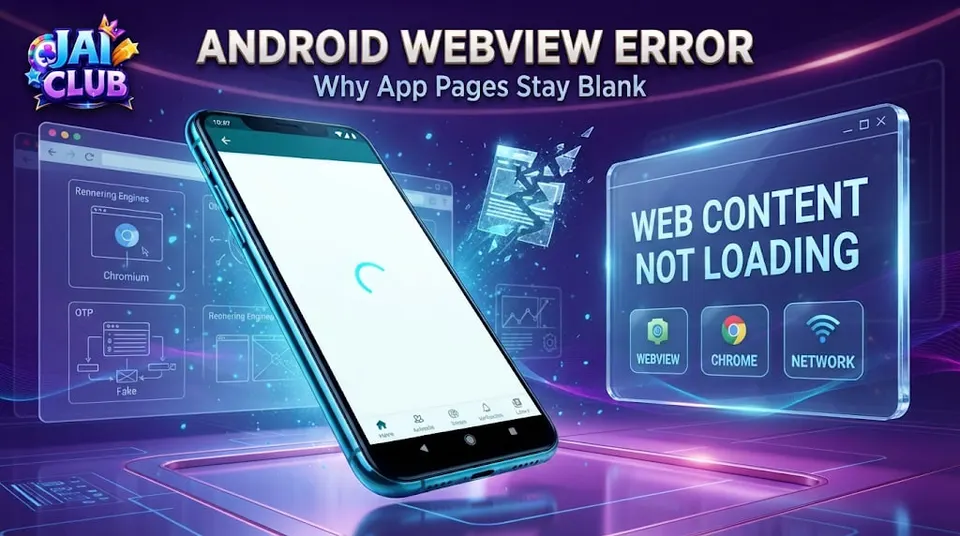
A blank screen means that the expected content is not visible. The application may remain open, with its menus and other controls still responding.
An application crash is different. The app may close unexpectedly, return to the home screen or display a system message saying that it has stopped.
For example, a user may open an app and see the navigation menu normally, but its account-help panel remains white. That points towards a problem affecting one section rather than an immediate failure of the entire application.
If the application closes before any interface appears, the problem may involve startup, compatibility, memory or another application component. WebView is only one possibility.
Android System WebView vs Google Chrome
WebView and Google Chrome are related but have different purposes. Chrome is a complete browser that users can open directly, while WebView provides web-rendering capabilities inside other applications.
Both are based on Chromium technology, but using Chrome successfully does not guarantee that every embedded page will work. An app can apply its own settings, permissions, storage and navigation behaviour.
The active WebView provider can also depend on Android version and device configuration. On some devices, the relevant implementation or available update controls differ from those shown in older tutorials.
This is why a missing or disabled WebView entry should not automatically lead to downloading an unknown APK from a third-party site.
Why WebView Can Stop Working After an Update
Software updates can change how rendering, security or compatibility features work. An application that depends on older behaviour may encounter problems after the underlying web-rendering component changes.
Google previously documented an incident in March 2021 involving Android application crashes linked to a WebView update. Its published response included updates for Android System WebView and Google Chrome.
That historical incident demonstrates that WebView updates can matter, but it does not prove that every current blank-screen problem has the same cause.
When a problem begins immediately after an update, the timing is useful diagnostic information. It should be recorded together with the device model, Android version and affected application.
Step 1: Identify Which Screen Is Blank
Before changing settings, identify the exact symptom. Does the application open normally before one section becomes blank, or does the entire interface remain empty from the beginning?
If only the embedded help or login panel is blank, the surrounding application may still be functioning. If every screen is affected, the problem may be broader.
Also check whether the issue appears immediately or only after pressing a particular button. A reproducible sequence is more useful than a general statement that the app does not work.
For example, "The app opens, but the account panel becomes blank after tapping Login" provides more diagnostic information than "Android is broken."
Step 2: Check Your Internet Connection
An embedded webpage normally requires access to the relevant content source. A weak connection, network interruption or unavailable server can prevent the page from loading.
Check whether ordinary websites open in a trusted browser. If several unrelated pages fail, the issue may involve the device's connection rather than WebView specifically.
Comparing Wi-Fi and mobile data can also be informative. A problem appearing on only one network may relate to connectivity, DNS or network restrictions.
However, switching networks should not be described as a guaranteed solution. A page can fail even when the internet connection is working correctly.
Step 3: Check Android System WebView Updates
Google's official Android troubleshooting guidance recommends checking for supported app and system updates when an application is not working correctly.
On a compatible device, open Google Play and search for Android System WebView. If a legitimate update is available for the active component, the Play Store may display an Update option.
The exact screen can differ according to Android version and manufacturer. Some devices manage the active web-rendering provider differently, so the standalone WebView listing may not appear as expected.
Users should not download an unrelated package simply because a website claims to offer the latest WebView version.
Step 4: Review Google Chrome Updates
Chrome may be relevant because Android's web-rendering components share Chromium technology and some device configurations use different provider arrangements.
Check the installed Chrome version through the verified Google Play listing when appropriate. If an update is available and supported, follow the ordinary update process.
Updating Chrome does not guarantee that a particular application will start working. The embedded page may still have a server-side or app-specific problem.
The purpose of this check is to reduce the possibility that outdated supported software contributes to the issue.
Step 5: Restart the Android Device
Restarting Android can stop temporary background processes and allow applications to begin a fresh startup sequence.
A restart is a reasonable early troubleshooting step because it does not normally require deleting application information. Google includes device restarting among its general recommendations for apps that will not open or respond.
After restarting, open the affected app once and check whether the same screen still fails. Avoid changing several unrelated settings at the same time because that makes it harder to identify which action mattered.
If the issue continues, record that the restart did not change the symptom before moving to another check.
Step 6: Force Stop the Affected App
Force stop ends the selected application's running process. It is different from uninstalling the app or clearing all its stored information.
On many Android devices, the option is available through Settings, Apps, the selected application and App Info. Menu names can differ between Samsung, Xiaomi, Vivo, Oppo and other manufacturers.
After force stopping, reopen the application and observe whether the blank page loads. This can help identify whether the issue was associated with the previous running session.
A force stop does not repair an incompatible signing certificate, unavailable server or defective application code.
Step 7: Understand App Cache vs App Data
Cache generally contains temporary information that an application may recreate. App data can contain saved settings, session information and other locally stored content.
Clearing cache may help with some temporary loading problems. Clearing app data is more disruptive and may remove information required for the application to restore its previous state.
| Action | What it does | Main consideration |
|---|---|---|
| Restart device | Restarts the operating system | Low disruption |
| Force stop | Ends one running app process | Does not reinstall app |
| Clear cache | Removes temporary cached resources | May help certain loading issues |
| Clear storage/data | Resets locally stored app information | Can remove sessions and settings |
| Update app | Installs a supported newer version | Use a verified publisher |
| Uninstall | Removes installed application | Can erase local data |
Cache clearing should not automatically be the first action for every WebView issue. It is more useful after identifying the affected application and understanding the possible consequences.
WebView Cookies Aur Login Session Problems
WebView can maintain browser-related data such as cookies and cached web resources. These may be used by the application to preserve an authenticated session or display previously loaded content.
A session-related problem can sometimes appear as a repeated login page, blank account area or unexpected redirect. However, the same symptoms can be caused by the service itself.
For a Jai Club-related login screen, it is important to distinguish an embedded-page problem from an account restriction. An application can fail to display the login form even when the account itself has not been blocked.
The correct troubleshooting method depends on whether the page loads and rejects credentials or fails before authentication becomes possible.
WebView Not Loading on Wi-Fi but Working on Mobile Data
Different networks can produce different browsing results. A webpage may be accessible over mobile data but fail on a particular Wi-Fi connection because of DNS, filtering or connectivity conditions.
This behaviour does not automatically prove that Android System WebView is damaged. It may indicate that the same remote content is being reached through different network paths.
A useful comparison involves the same device, application version and page. Change only the connection, then observe whether the failure is consistent.
The result can help narrow the investigation, but should not be used to bypass security warnings or network restrictions whose purpose is unknown.
Why HTTPS and Certificate Errors Matter
WebView can encounter problems when an embedded page has an invalid or untrusted TLS certificate. Android's developer documentation specifically warns that applications should not bypass SSL certificate errors simply to continue loading content.
If the service's certificate cannot be trusted, forcing the page to load may expose sensitive information.
A user should not install unknown certificates or disable security protections to make a blank login page disappear.
The appropriate response is to verify the website address and use the application's legitimate support channel if a certificate-related issue remains unresolved.
Does Clearing WebView Updates Fix Every Problem?
No. Reverting system-component updates is not a universal solution and can introduce additional compatibility or data-loss risks.
Google has previously warned against manually uninstalling WebView updates because some applications may lose data associated with WebView storage.
The recommended starting point is checking supported updates and ordinary troubleshooting measures, not downloading outdated system packages from unfamiliar websites.
If the problem began after an update and remains widespread across several applications, information from Google or the device manufacturer may be relevant.
When the Problem Is Not WebView
Not every blank screen is caused by the web-rendering component. A website may be unavailable, a particular service may reject the request or the application may fail to handle an error properly.
The device may also have storage or memory pressure. In another case, a damaged application installation could prevent startup before WebView becomes involved.
A useful diagnosis considers the complete sequence rather than choosing a cause from one screenshot.
This is especially important when reading generic troubleshooting articles that describe every loading issue as a WebView error.
What Information Helps Technical Support?
A useful report identifies the device manufacturer, Android version, affected application version and the exact action that produces the blank screen.
It should also mention whether other applications work, whether the problem appears on Wi-Fi and mobile data, and whether updates or a restart changed the result.
Sensitive account details should be removed from screenshots before sharing them. OTPs, passwords and recovery information are not required for an ordinary rendering diagnosis.
The more precisely the failure is described, the easier it is to distinguish a component problem from a server or authentication issue.
Frequently Asked Questions
What is Android System WebView?
It is a Chromium-based Android component that allows applications to display web content inside their interfaces.
Can WebView cause a blank login screen?
Yes, when an application relies on embedded web content. However, a blank screen alone does not prove WebView is responsible.
Is WebView the same as Google Chrome?
No. Chrome is a full browser, while WebView is used to render web content inside applications.
Why did the problem begin after an Android update?
An update may change compatibility or rendering behaviour, but other causes must also be considered.
Should I update Android System WebView?
Checking for supported official updates is a reasonable troubleshooting step.
Does clearing cache fix every WebView error?
No. Cache clearing only addresses certain temporary storage problems.
Will clearing app data remove my login session?
It can remove locally stored session information and settings, depending on the application.
Why does the app work on mobile data but not Wi-Fi?
The difference may involve the network connection rather than the WebView component itself.
Is it safe to install an older WebView APK from Telegram?
Unknown system packages should not be treated as trustworthy updates.
Does a blank Jai Club login page mean the account is locked?
No. A rendering failure and an account restriction are different conditions.
Final Assessment
Android System WebView problems are best diagnosed by identifying exactly which part of an application is failing. An embedded page that remains blank is different from a complete application crash, and neither symptom identifies one guaranteed cause.
Checking the network, supported updates, device behaviour and application state provides more useful information than immediately clearing all data or reinstalling unknown packages.
This article is based on official Android documentation and general technical principles. It does not claim that a particular Jai Club APK or Android device was personally tested.
Sources and Methodology
Primary references: Android Developers' WebView documentation, Google's Android application troubleshooting guide and Google's published guidance concerning WebView-related application crashes.
This guide separates documented Android component behaviour from possible causes that require investigation on the affected device.